Glossy Cartoon Text Effects: Making Your Designs Pop
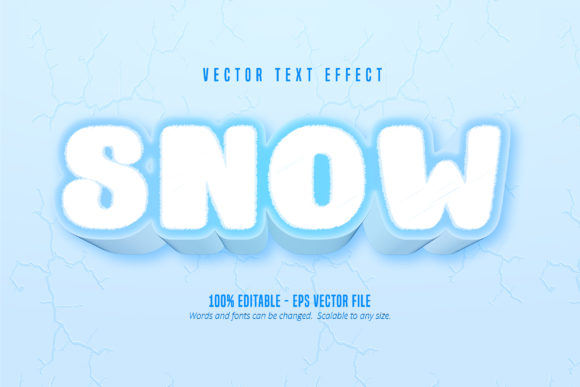
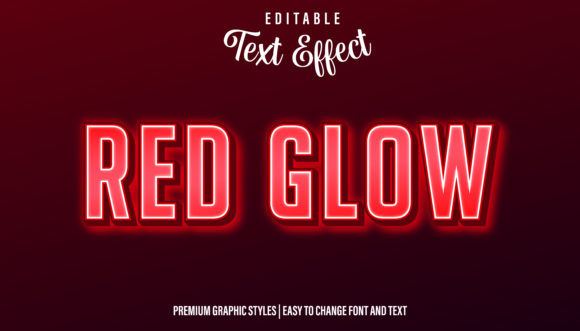
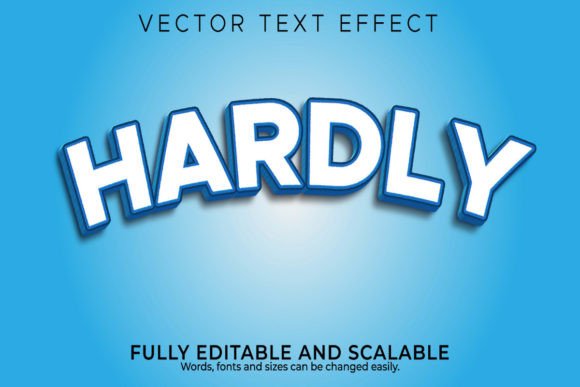
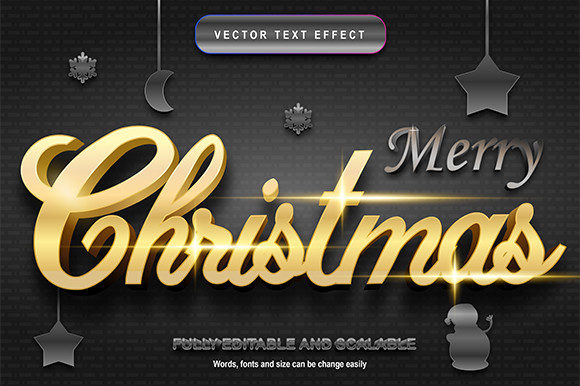
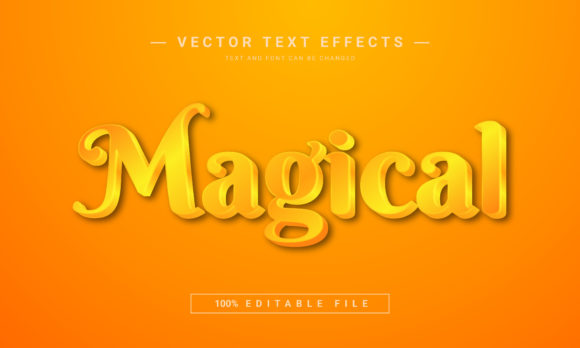
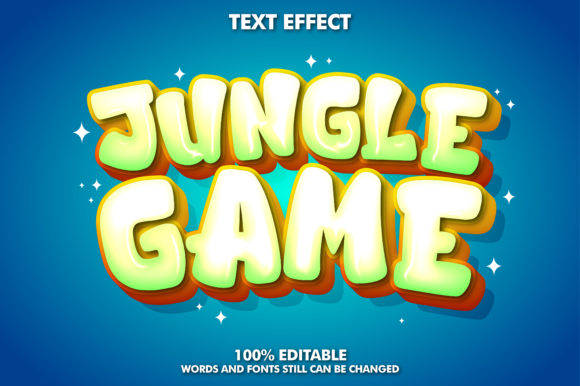
There’s a specific kind of visual magic that happens when you combine bold typography with a high-shine finish. You see it on cereal boxes that catch a toddler’s eye, on movie posters that promise blockbuster fun, and in mobile game interfaces that feel instantly engaging. This is the power of glossy cartoon text effects, a design approach that transforms simple letters into vibrant, tactile objects. For creators working in Adobe Illustrator, having access to editable text effects in this style isn't just a nice-to-have; it's a practical toolkit for injecting energy and professionalism into a wide range of projects.
Beyond Flat Design: The Appeal of Dimension and Shine
Modern typography often leans toward minimalism, but there are countless scenarios where a flat, understated font simply won't cut through the noise. A glossy effect adds depth, dimension, and a sense of physical presence. It suggests that the text is something you could almost reach out and touch—be it made of polished plastic, liquid chrome, or sugary glaze. This tactile quality is incredibly effective for grabbing attention. When used as a logo design element, it can make a brand feel approachable, playful, and high-quality all at once. For packaging design, especially for food products, beverages, or children's items, this style can directly communicate sweetness, fun, and premium value without a single word of copy.
The key to its versatility lies in the "cartoon" aspect. This isn't about realistic metallic sheens or subtle glass effects; it's about a stylized, often colorful, and slightly exaggerated form of gloss. Think of the title treatment for a Pixar film or the logo for a popular candy bar. It feels friendly and energetic. A premium font that comes with these editable effects built-in, particularly one designed for Adobe Illustrator, gives you a massive head start. Instead of spending hours crafting layer styles and gradients from scratch, you can apply a professional, cohesive look with just a few clicks, ensuring visual consistency across all your materials.
Practical Applications: Where This Style Shines
Understanding where to use glossy cartoon text effects is just as important as knowing how to apply them. Their inherent fun and boldness make them unsuitable for, say, a law firm's annual report, but they are perfect for a multitude of other creative and commercial projects.
- Branding & Logo Design: Ideal for brands targeting a younger demographic or those in the entertainment, food, or toy industries. A glossy logo can become a memorable mascot in itself.
- Packaging & Labels: From snack foods and soda cans to toy boxes and cosmetic bottles, this effect helps products leap off the shelf. It’s a cornerstone of effective packaging design for impulse-buy items.
- Marketing & Social Media: Create scroll-stopping graphics for Instagram stories, Facebook ads, and YouTube thumbnails. The bold, shiny text is optimized for small screens and fast scrolling.
- Event & Product Promotion: Perfect for posters, flyers, and digital banners promoting sales, parties, game launches, or new product releases.
- Merchandise & Apparel: Works wonderfully on t-shirts, stickers, and mugs where a vibrant, eye-catching graphic is the main attraction.
- Digital Products & Editorial Design: Can be used sparingly for chapter titles in a playful e-book, headers for a gaming blog, or standout quotes in a magazine layout.
For a small business owner creating their own marketing materials, or a content creator designing channel art, having a pre-made, editable asset like this saves significant time and elevates the final output from amateur to professional. It’s a design asset that pays for itself in efficiency and impact.
Choosing and Pairing Your Glossy Typeface
Not all glossy fonts are created equal. When selecting one for your project, consider the underlying letterform style. A rounded, sans-serif font with a glossy effect will feel more playful and childish, while a slightly condensed or angular one might skew toward a retro arcade or edgy comic book vibe. Review the included font styles—does the family offer regular, bold, and italic versions? More importantly, are the effects themselves editable? The ability to adjust colors, gloss intensity, and shadow depth within Adobe Illustrator is crucial for matching the effect to your brand's specific color palette.
A common pitfall is overusing such a dominant style. For readability, especially in longer strings of text, it's best used for headlines, single words, or short phrases. Pair it thoughtfully. A high-shine, cartoonish display font works best when contrasted with a clean, neutral sans-serif font for body copy. This font pairing creates a clear hierarchy: the glossy text commands attention for the main message, while the simpler type ensures supporting information remains legible and doesn't compete. Test your pairings at various sizes to ensure the glossy effect doesn't become muddy or overly busy when scaled down.
From Concept to Final Design: A Practical Workflow
Let's walk through a hypothetical project. Imagine you're launching a new line of gourmet popcorn. You need a brand identity that feels fun, modern, and a little indulgent. A glossy cartoon text effect is a perfect fit.
- Foundation First: Start in Adobe Illustrator with your editable text effect font. Type out your brand name. Apply the base glossy effect from the provided styles.
- Customize: Use the effect's editability to change the primary color to a rich, buttery yellow and the gloss highlight to a soft white. Adjust the bevel or shadow to give the letters more depth, making them look like puffy, shiny kernels.
- Build the Logo: Lock this text layer. Now, create a simple supporting graphic—perhaps a stylized popcorn kernel or a ticket stub. Place it adjacent to or slightly overlapping the text. Use a clean, rounded sans-serif font for a tagline like "Artisan Popped" beneath the main logo.
- Extend to Packaging: Take your finalized logo and apply it to a bag mockup. Use the same glossy font style for a callout like "NEW!" or "Extra Butter." The consistency in the typography reinforces brand recognition. For the nutritional info and ingredients list on the back, switch entirely to your neutral sans-serif for maximum legibility.
- Adapt for Digital: For a social media graphic announcing the launch, scale up the glossy logo as the hero element. The effect will be just as impactful on a phone screen as it is on a physical package, ensuring a cohesive cross-channel experience.
This workflow highlights the real-world value of starting with a well-designed, editable creative font. It provides a strong, professional starting point that you can then adapt and build upon, ensuring your final designs are both visually striking and functionally effective for their intended medium. Always double-check the commercial licensing of any font you use to ensure it covers your specific project, whether it's for client work, merchandise, or digital distribution.